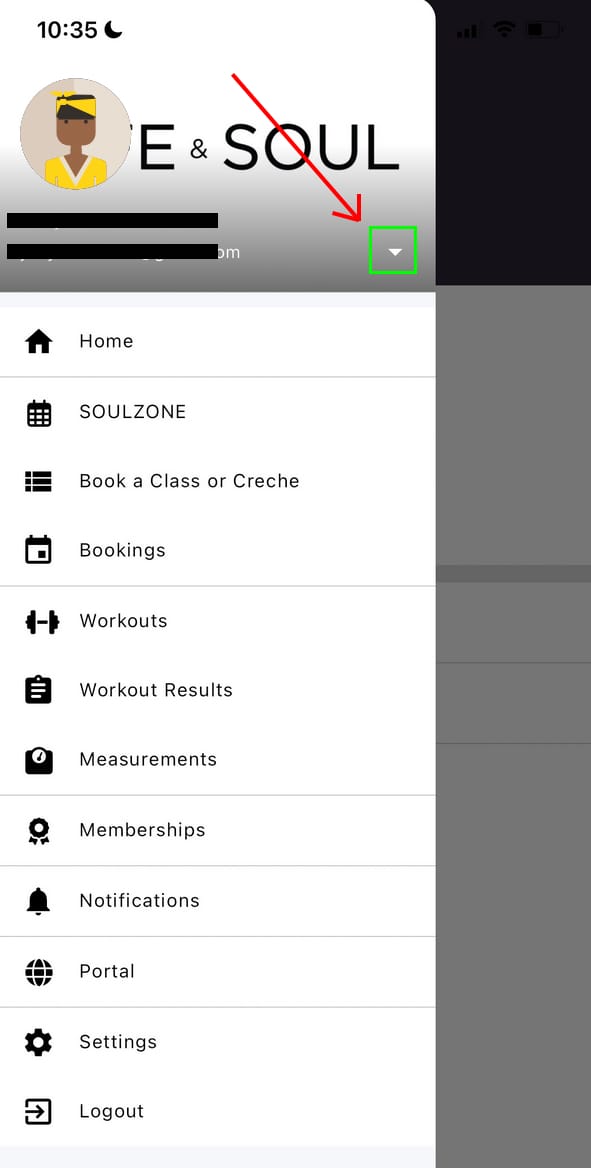
Managing your membership can be done through the Member Portal or the GymMaster App
To access the Member Portal, click here
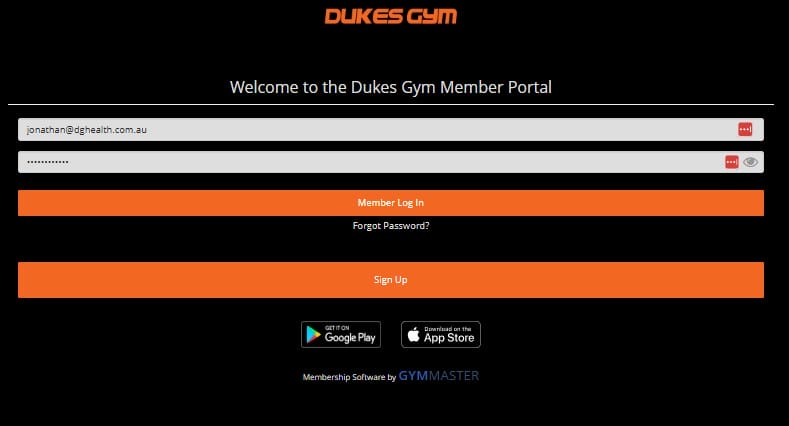
Logging into the Member Portal
You can access the Member Portal by clicking here. If you’ve never logged in before enter the email address we have on file and click the forgot password link. You’ll be sent a password reset email. If it doesn’t appear in your inbox be sure to check your spam folder.
You can access all the same features as the GymMaster app below, including checking your account charges, viewing upcoming bookings, placing your membership on hold and cancelling your membership, however the navigation may be slightly different than the app.

Installing the GymMaster App
The GymMaster app is available on both iPhone and Android devices. You can download the app here –>
GymMaster – Apple Apps Store
GymMaster – Google Play Store
If it’s your first time logging into GymMaster you’ll need to enter the same email address you provided us and click the Forgot Password link.
Accessing Your Membership Details
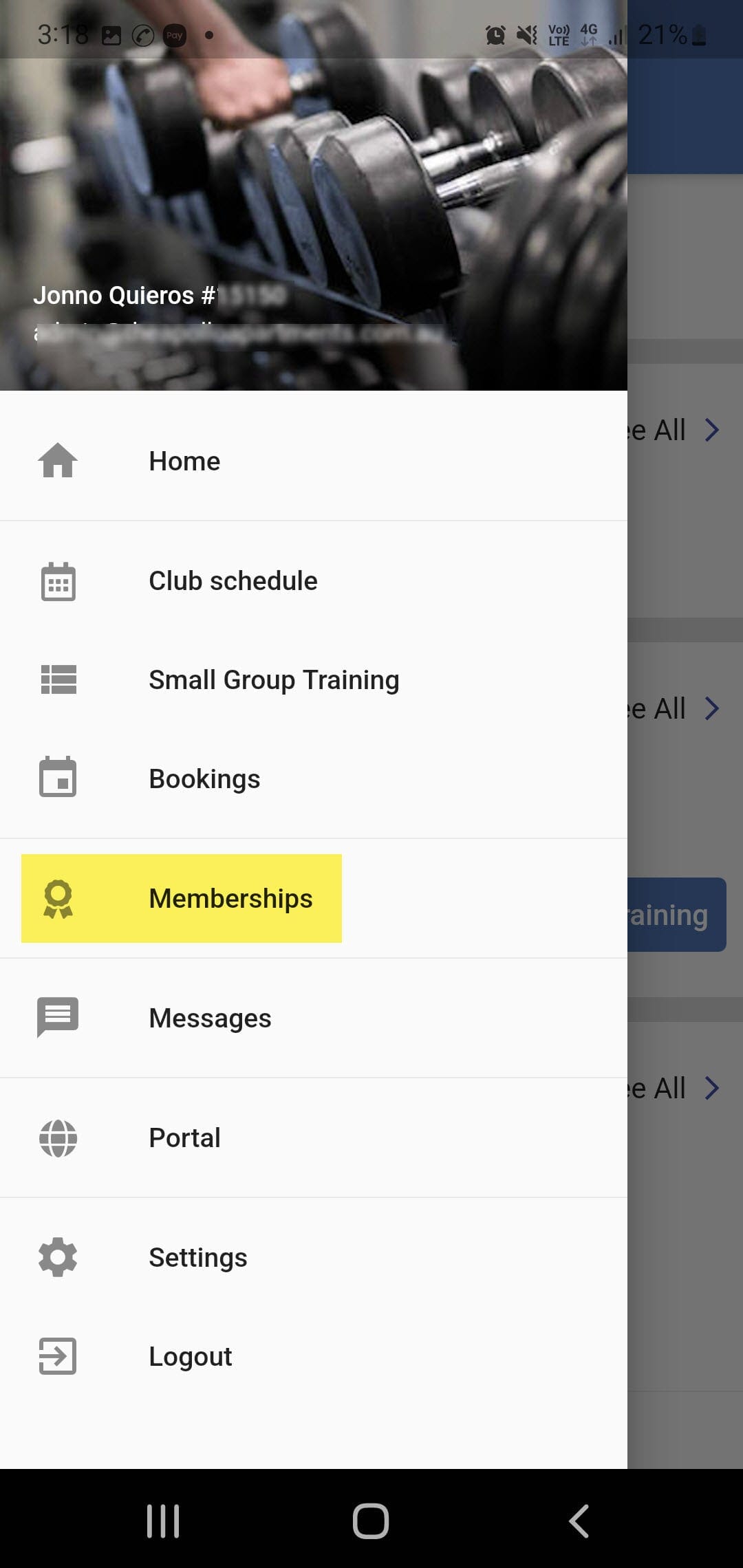
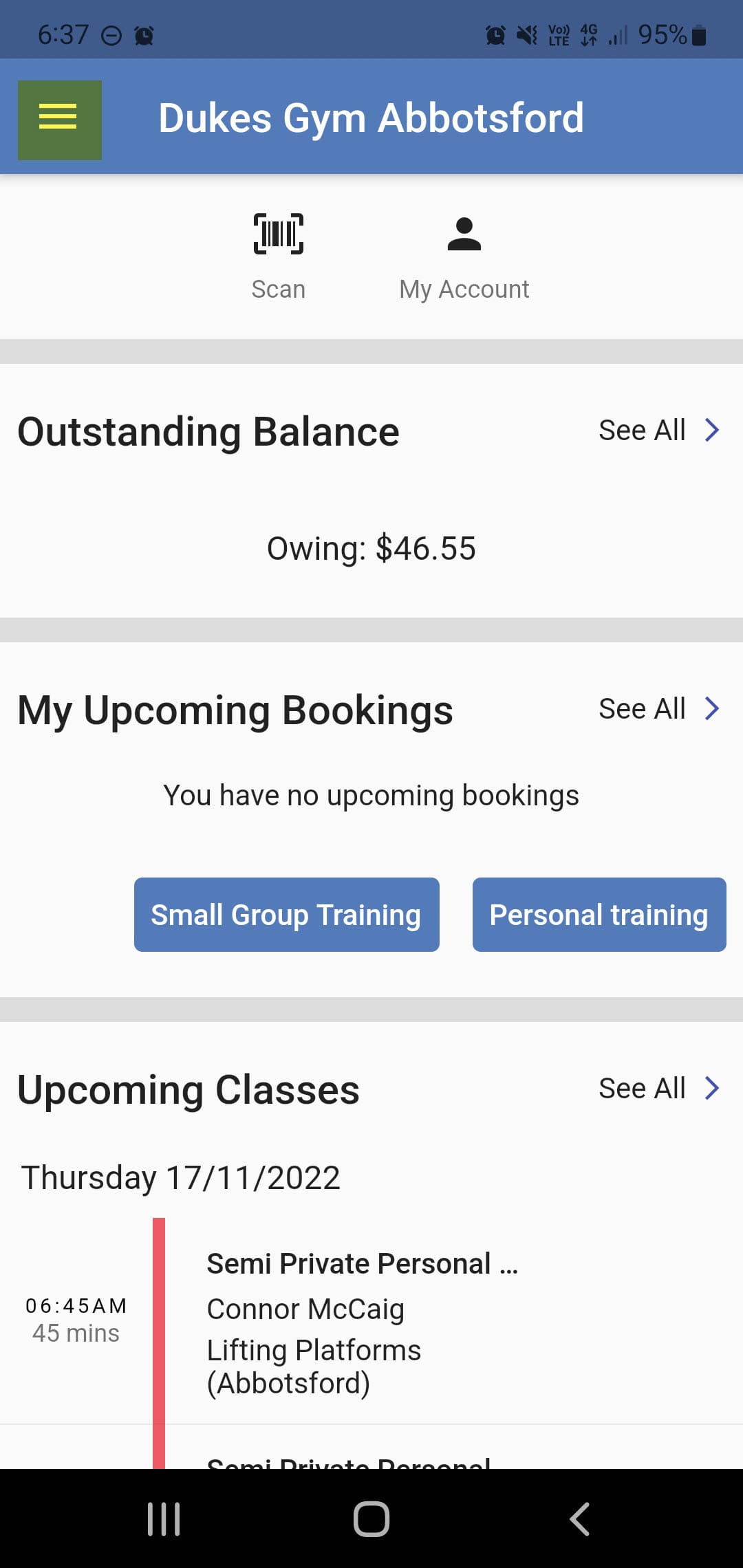
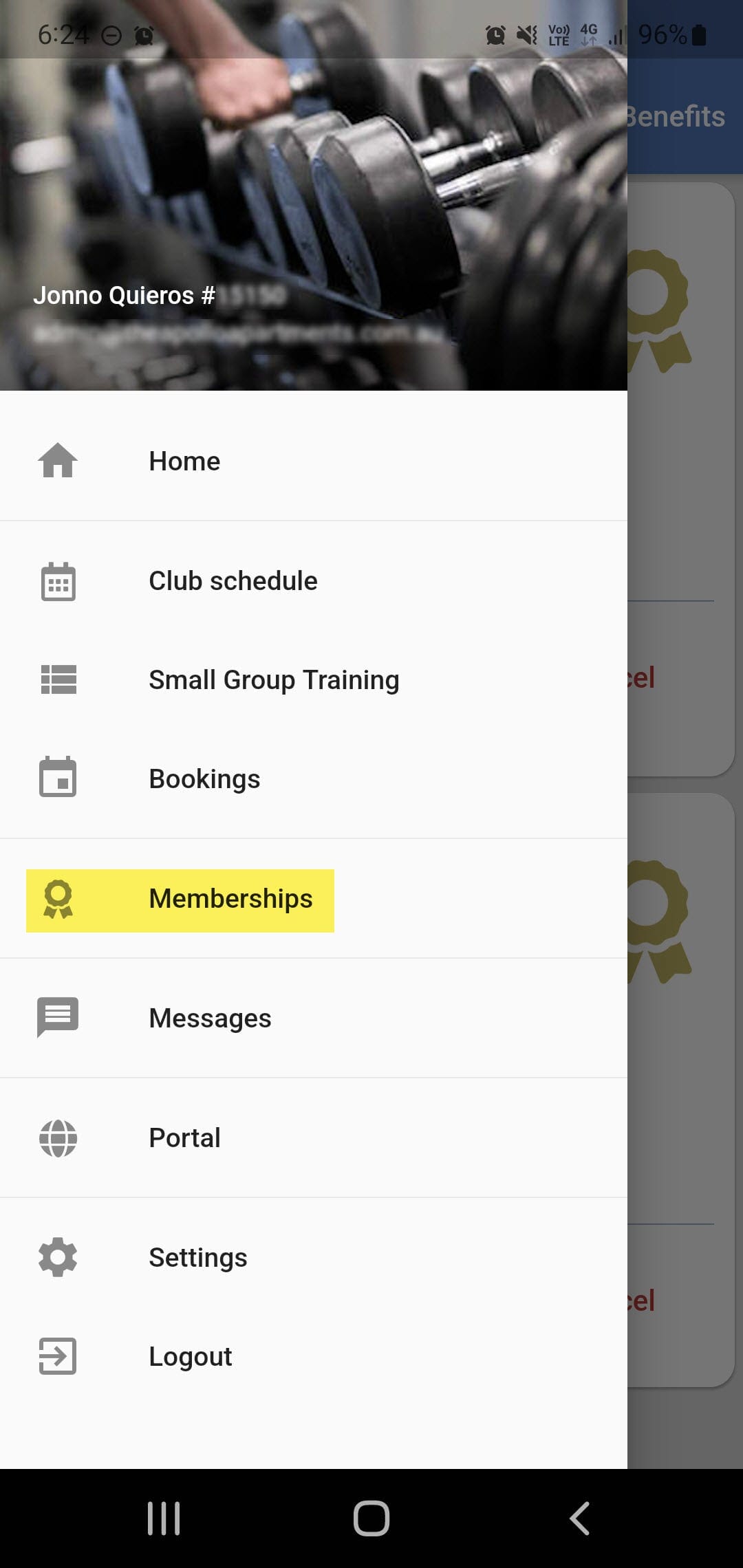
1. Log into the GymMaster App and click on the hamburger menu in the top left hand side
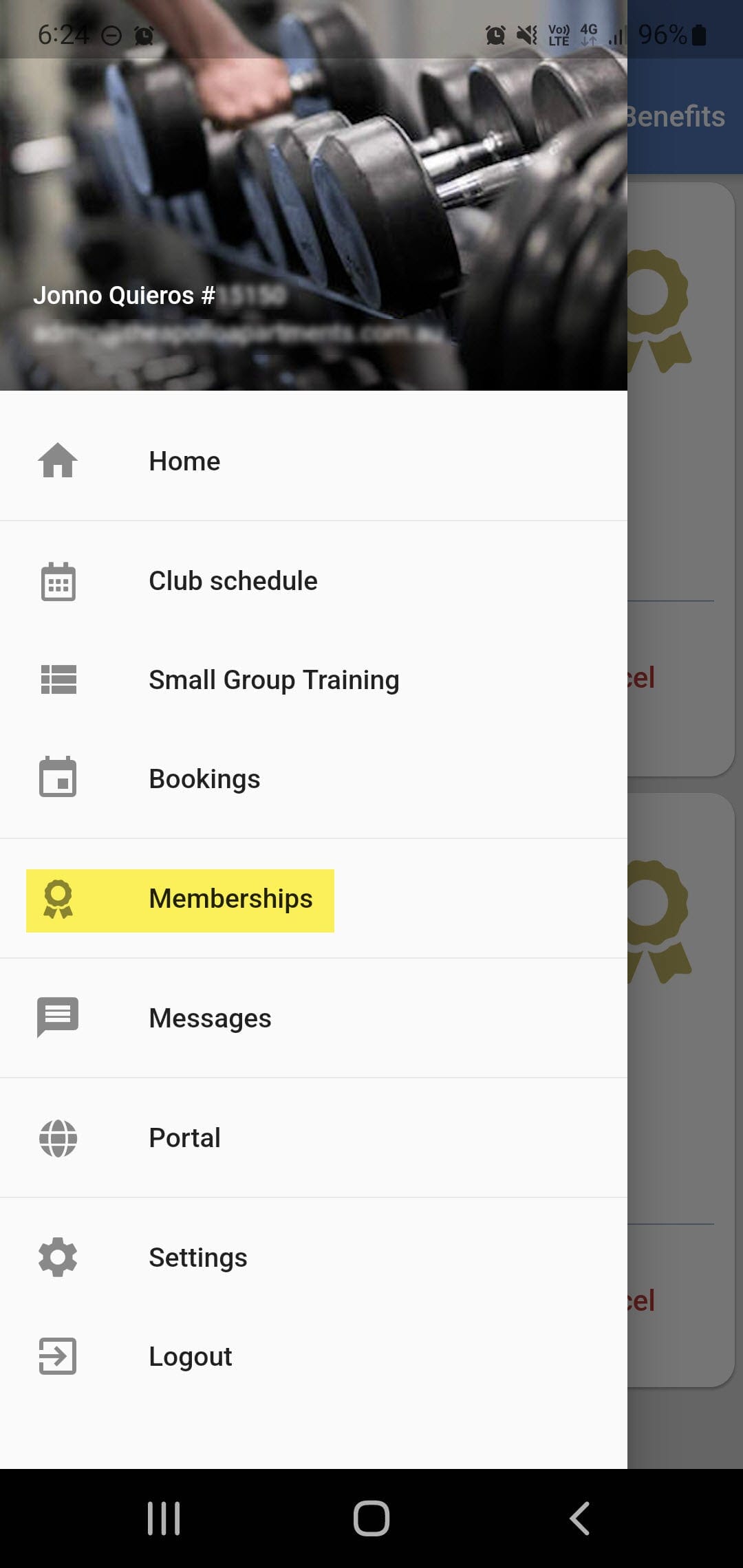
2. Click on the Memberships
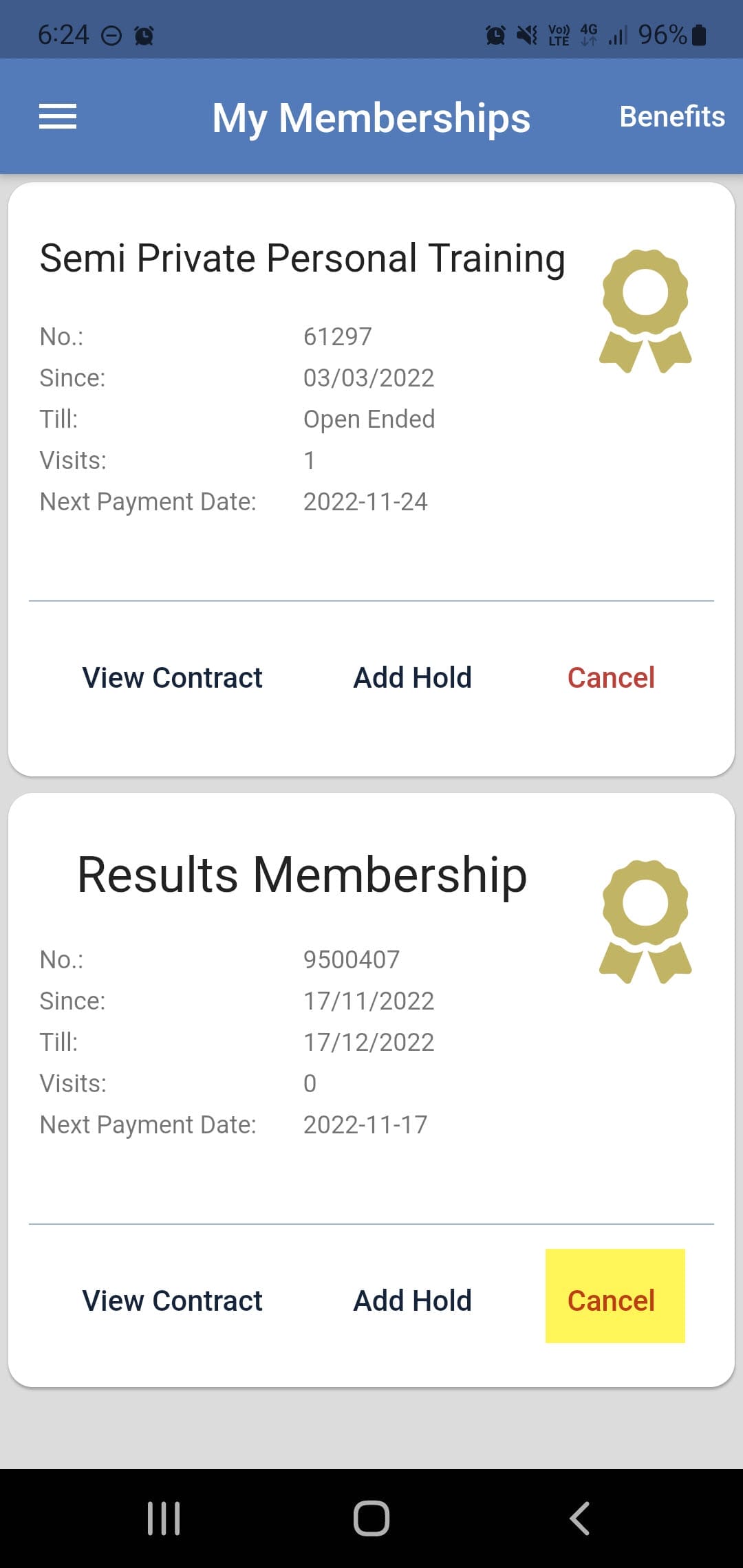
3. Key dates, membership terms and contract details can all be found here

Account Charges and Billing Cycles
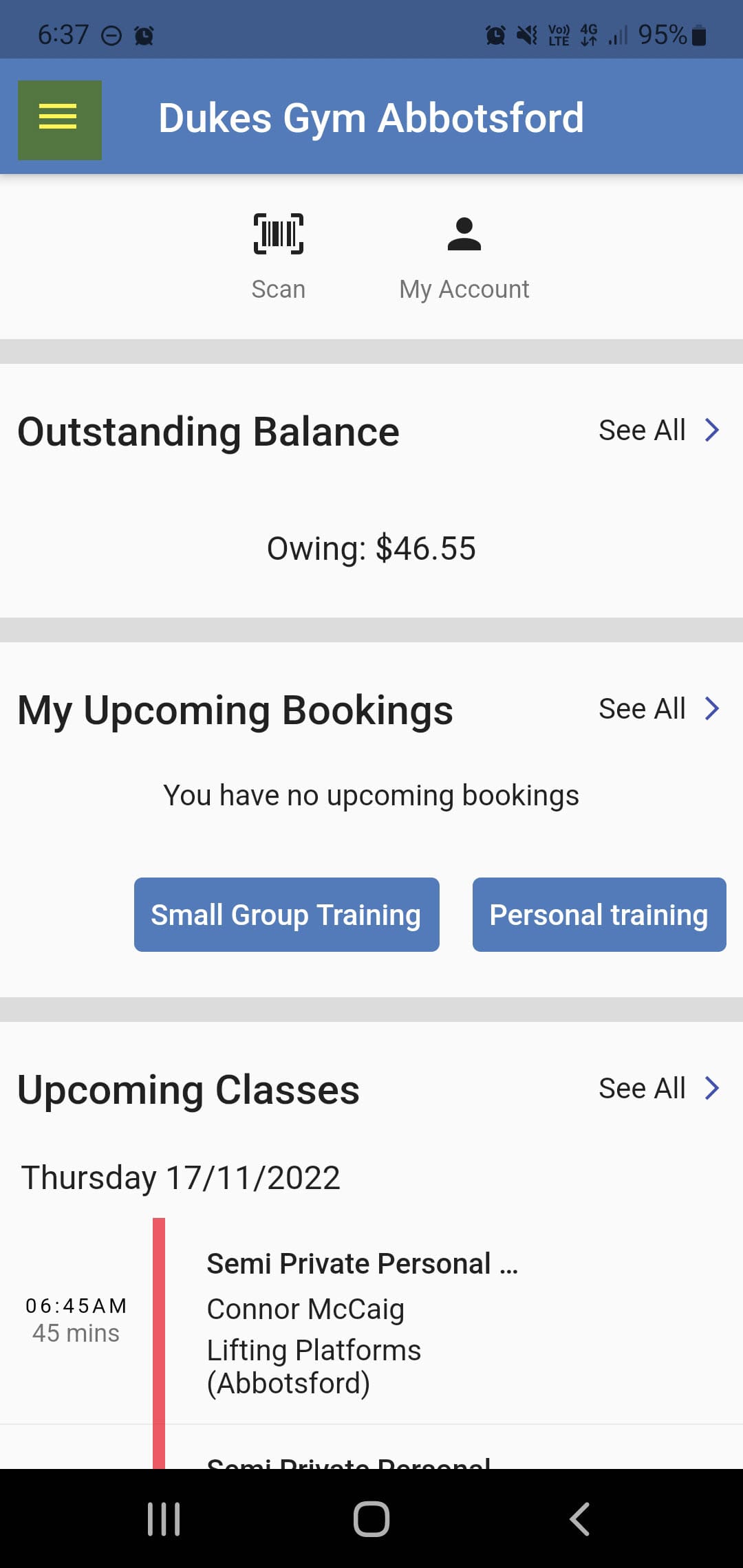
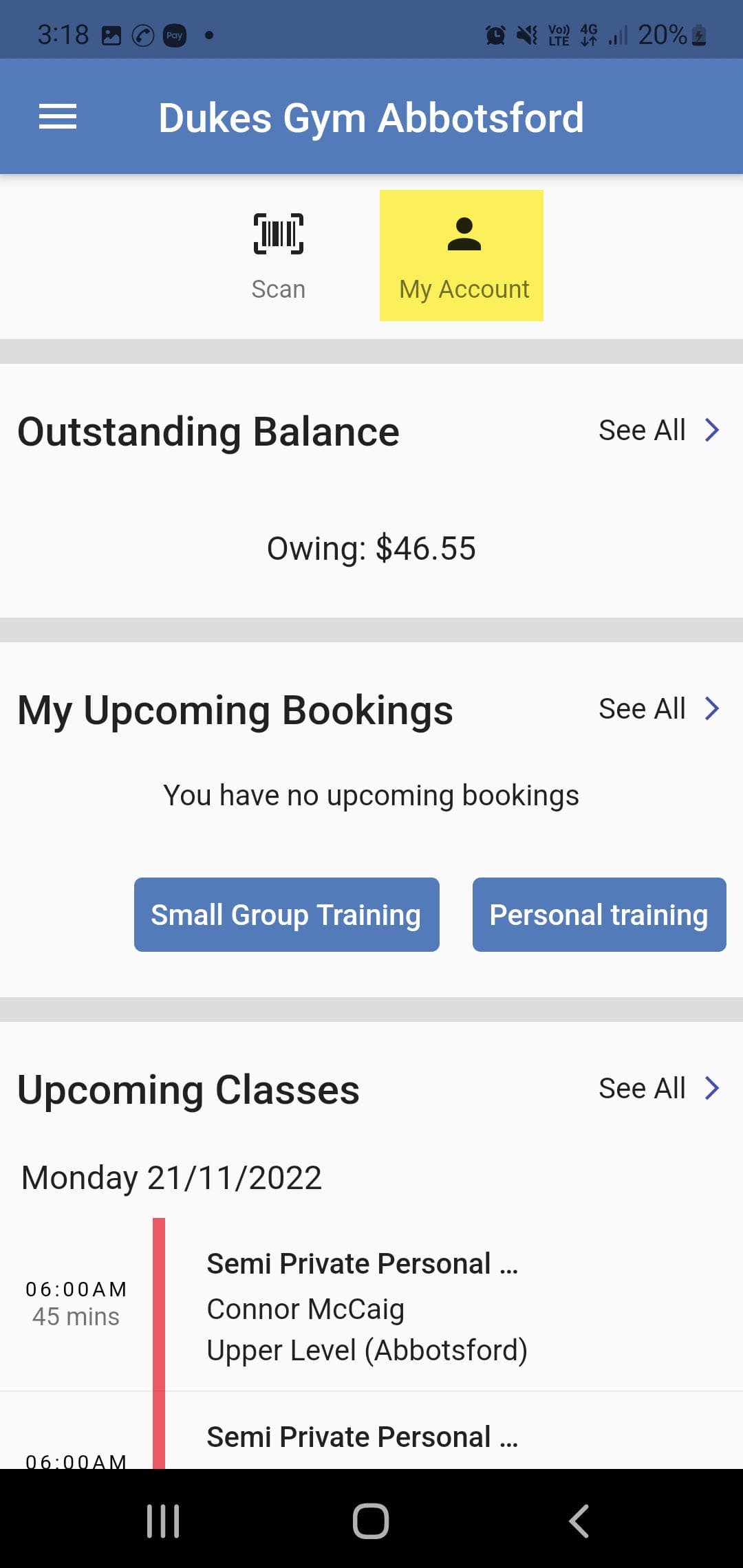
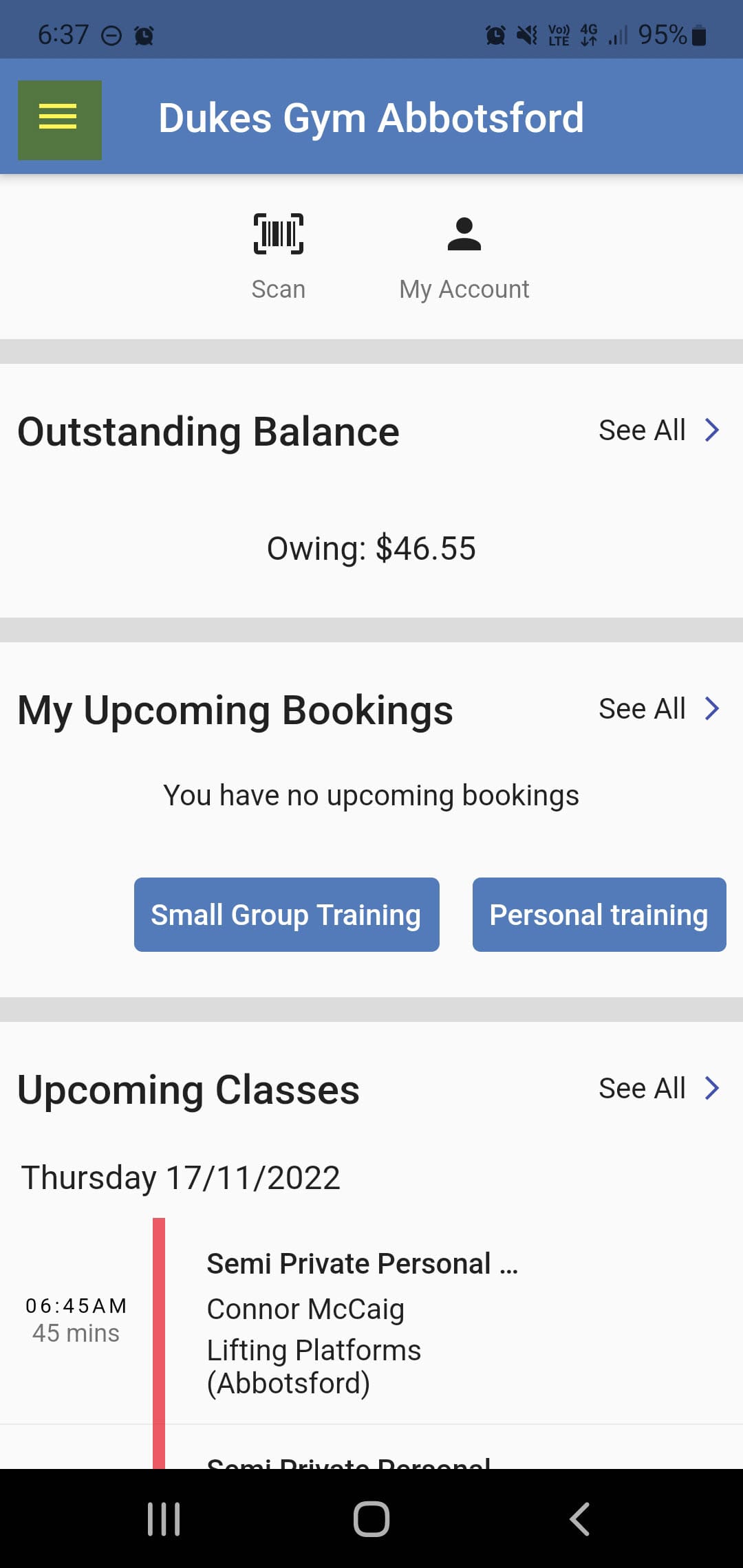
1. Click on the My Account button on the home page.
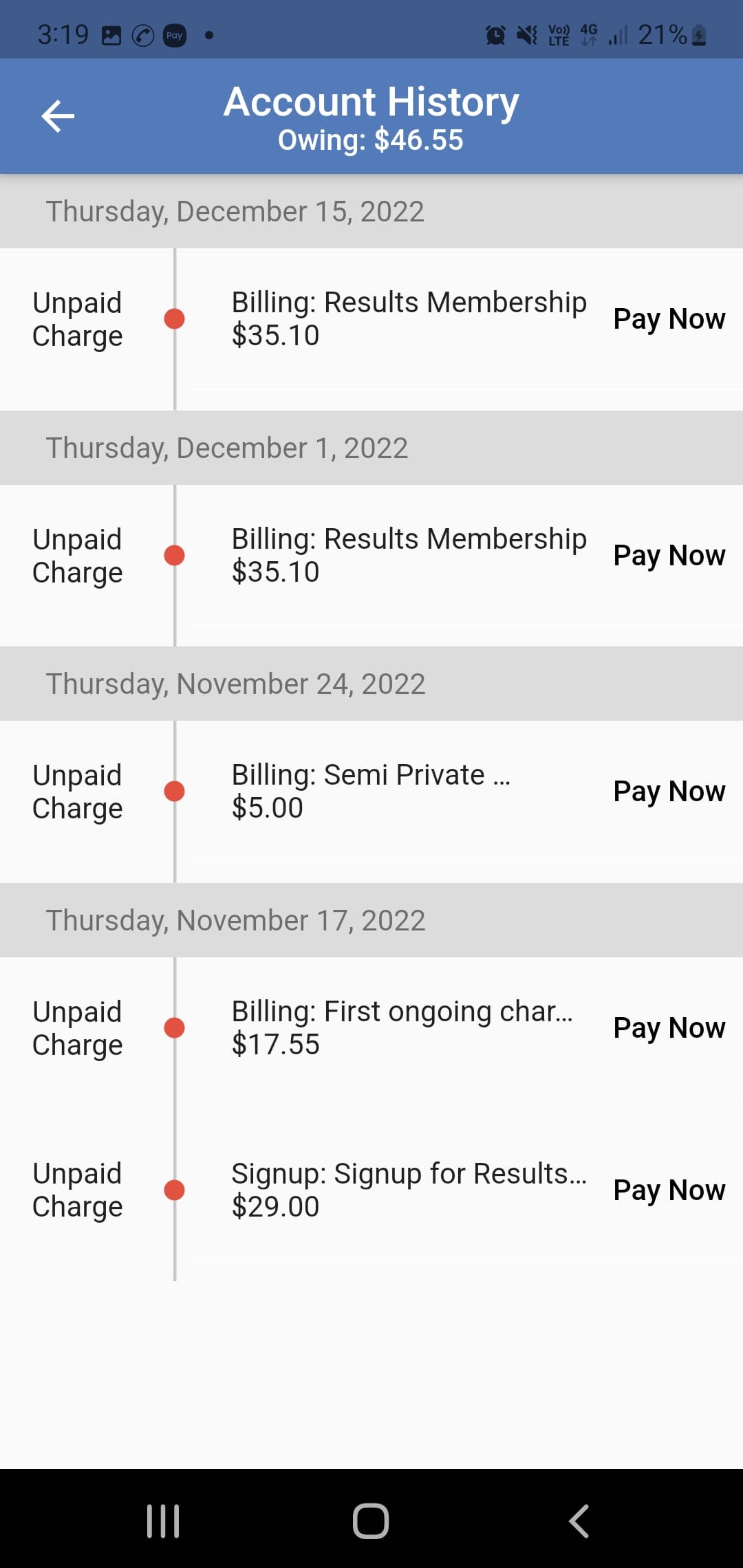
2. Click on the Account History button
3. Billing history is displayed here.
Billing Frequency
We bill fortnightly in advance on a Thursday.
Pro-Rata Charge
Please note when you first join the gym there will be a pro-rata charge that covers your access from your joining day to the first Thursday.
Transaction Fees
We use a third party payment processor, GoCardless, to facilitate payments. There is a $1.20 transaction fee charged on top of the normal membership rate.

Placing Your Membership On Hold
To place your membership on hold:
1. Log into the GymMaster App and click on the hamburger menu in the top left hand side.
2. Select the Memberships option
3. Select the membership you would like to place on hold and select the Add Hold button
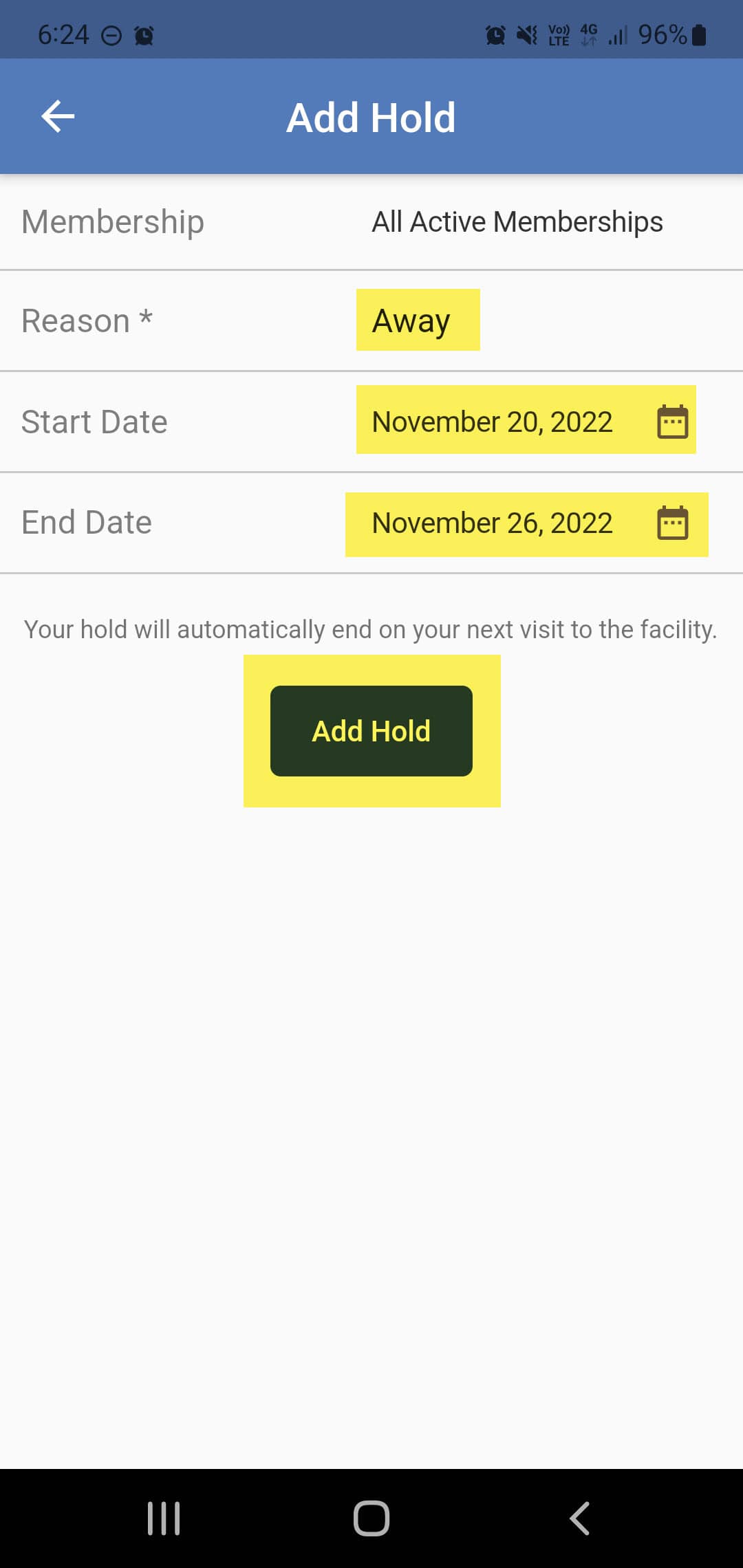
4. Include a reason for the hold and the start and end dates. Then click ‘Add Hold’
Hold Durations and Notice Periods
Please note, holds must be done 3 days in advance of the hold commencing. The duration of the hold can be a minimum of 1 week and a maximum of 2 months.
Hold Fees
There is a freeze fee of $6.00 per week for all membership holds.

GymMaster App Download
Cancelling Your Membership
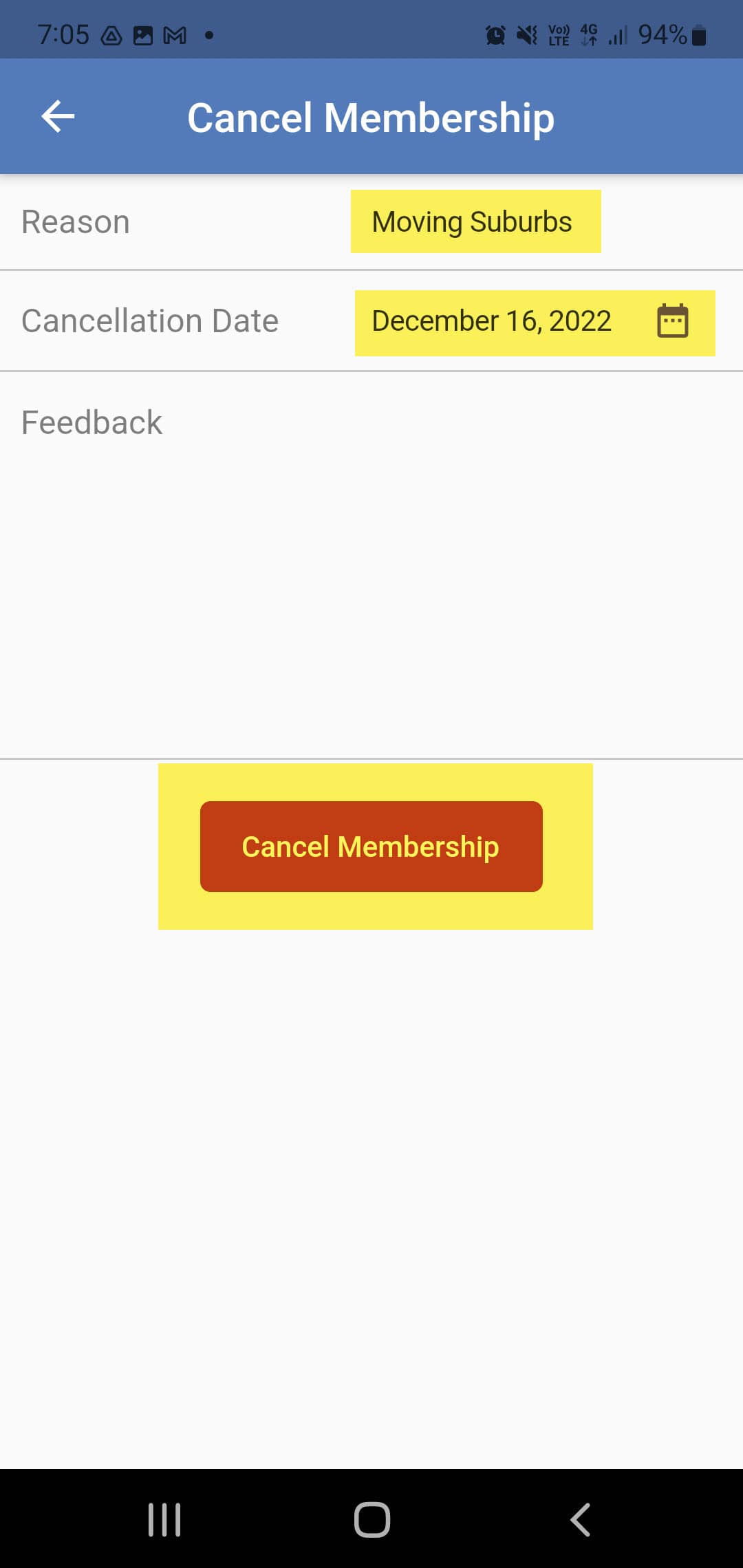
To cancel your membership:
1. Log into the GymMaster App and click on the hamburger menu in the top left hand side.
2. Select the Memberships option
3. Select the membership you would like to cancel and select the Cancel button
4. Include a reason for the cancellation and the end dates. Then click ‘Cancel’
Cancellation Notice Periods
Please note, there is 30 days notice required for all cancellations. You will still have access to the club during this time and your membership cannot be placed on hold during the cancellation notice period.
Troubleshooting
Logged Into The Wrong Club
GymMaster is a common app a lot of fitness businesses use to manage their membership base.
When logging in, you may find that your emai address is already linked to another gym.
To switch locations, simply click on the drop down arrow next to your name.